How to connect ChatGPT Plus to self-hosted WordPress with MCP
Connect ChatGPT Plus to a self-hosted WordPress site with WPPilot, OAuth, public HTTPS, a dedicated user, a read-only first test, and clear troubleshooting.
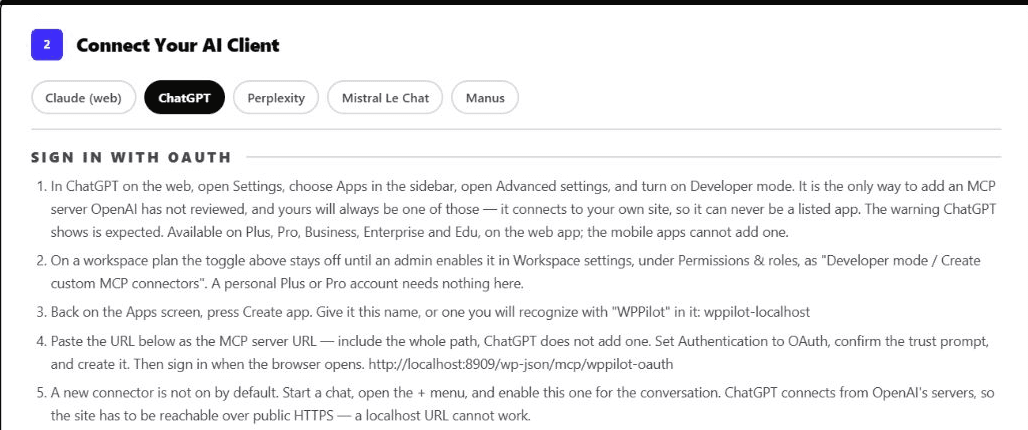
Real WPPilot screen
The installed ChatGPT connection path.
Captured from WPPilot Free 1.6.4 on the local test site and cropped to remove account details. The localhost URL documents the real interface but cannot be reached by ChatGPT; use the public HTTPS route generated by the site being connected.
What this connection does
A ChatGPT custom app can point to the MCP endpoint running on your own self-hosted WordPress site. ChatGPT discovers the tools that endpoint exposes, chooses a relevant operation, and sends a structured request. WordPress authenticates the connection and WPPilot applies the active safety profile, ability switches, WordPress capabilities, rate limits, and critical-action confirmation before an operation runs.
WPPilot is not an OpenAI-maintained connector and no WPPilot cloud proxy sits between the two systems. The custom app connects from OpenAI's infrastructure to the public HTTPS address of your site. That distinction explains both the main requirement and the main boundary: localhost cannot work, and the authority comes from the WordPress identity and policy you configure.
What you need before opening ChatGPT
Use WordPress 6.9 or newer, PHP 8.0 or newer, and the current WPPilot Free release. The site needs a public domain with a trusted HTTPS certificate because a cloud service cannot reach a laptop-only hostname, a private IP, or a local Docker port. Start on staging when possible and take a current backup before any later write test on an eligible managed plan.
Create a dedicated WordPress user for this connection. Give it the smallest role that can complete the intended work and begin with WPPilot's Read Only profile. A safety profile narrows what the user can do; it does not make an administrator identity narrow, which is why using your everyday admin account is the wrong shortcut.
Generate the ChatGPT MCP URL in WordPress
Open WPPilot in wp-admin and go to Connect. Choose ChatGPT and select OAuth 2.1. Copy the complete MCP server URL the installed site generates. It includes the endpoint shape for that site, so an example URL from a public article is never a substitute.
Do not put a WordPress password, access token, OAuth code, or complete private endpoint in a screenshot or prompt. The ChatGPT custom-app route is OAuth-only in the current WPPilot client registry; the form does not provide a field for a static Authorization header.
Enable Developer mode in ChatGPT
Use ChatGPT on the web. Open Settings, choose Apps, open Advanced settings, and enable Developer mode. OpenAI currently lists custom MCP for Plus and Pro, but personal plans are limited to read and fetch. Full write-capable MCP is currently available only to Business and Enterprise/Edu. The live account remains authoritative because plan controls can change.
On a managed Business, Enterprise, or Edu workspace, an administrator can need to allow custom MCP apps under workspace permissions before a member can turn Developer mode on. A greyed-out or absent toggle is therefore an account or workspace gate, not a WordPress permission problem.
Create the custom WPPilot app
Return to the Apps screen and choose Create app. Give it a name that identifies both WPPilot and the site, such as ‘WPPilot: Store Staging’. Paste the entire generated URL as the MCP server URL, choose OAuth, review the third-party server warning, and create the app.
The warning is expected. This endpoint belongs to your WordPress site and has not been reviewed by OpenAI as a listed app. Trust should come from controlling the site, reviewing the plugin source and settings, using a dedicated identity, and limiting the exposed abilities. Do not dismiss the warning without understanding it.
Complete WordPress authorization
ChatGPT opens the WordPress sign-in and consent flow. Sign in as the dedicated connection user, review the app name and requested authorization, and approve it. If the browser loops or returns an OAuth error, capture the exact error text and check the public site URL, HTTPS certificate, redirects, and security-plugin rules before changing permissions.
Successful sign-in proves authentication, not authorization. The user still needs the WordPress capabilities required by each ability, and WPPilot can withhold an ability entirely under the active safety profile. That is why the first test should ask the site what it can see instead of assuming the tool list.
Enable the app in a new chat
Creating a custom app does not necessarily make it active in every conversation. Start a new chat, open the add-tools or plus menu, and enable the WPPilot app for that chat. If the app is present but no tools are used, confirm it is enabled before rebuilding the connection.
Keep the first request explicit and read-only: report the safety profile, list available abilities, inspect one read schema, and read one public page. Require the answer to name the WordPress ID, title, and status it actually received, and to state that no writes occurred.
Use a read-only verification prompt
Ask ChatGPT to use WPPilot for one request, report the active safety profile, list available abilities, inspect one read-only content schema, and read one public page. Tell it not to write, publish, upload, install, delete, or invoke developer tools, and to report every connection or permission error exactly.
This single prompt exercises public reachability, OAuth, tool discovery, schema retrieval, WordPress capability checks, and the structured result path. It does not prove production readiness, visual accuracy, every plugin integration, or any write workflow. Those require separate evidence.
Troubleshoot the failing layer
A reachability failure belongs to DNS, HTTPS, firewall, proxy, or endpoint routing. An authorization loop belongs to OAuth discovery, redirect handling, the WordPress session, or security middleware. A missing tool belongs to the active profile, ability switch, WordPress capability, plugin dependency, Pro licence state, or a cached ChatGPT tool list. Keep those layers separate so a networking problem never becomes an excuse to grant administrator access.
When the site or plugin configuration changes, begin a fresh ChatGPT conversation to force a clean tool discovery. Record the exact WPPilot Free version, WordPress and PHP versions, public URL, account surface, and error text before escalating a support request. Never include a complete credential.
Stop at read-only on Plus and Pro
OpenAI currently limits personal Plus and Pro custom MCP connections to read and fetch. On those plans, the verified page read is the end of this tutorial: do not describe draft creation, editing, or publishing as an available ChatGPT capability merely because WPPilot itself exposes guarded write abilities.
If an eligible Business or Enterprise/Edu workspace enables full MCP writes, move to staging and test one reversible draft only after the read result is correct. Inspect the target first, preview where supported, read the object back, and review the change ledger before adding broader authority.
Reviewed sources
- Developer mode and MCP apps in ChatGPT, OpenAI, accessed August 24, 2026
- MCP and Connectors, OpenAI, accessed August 24, 2026
- From Abilities to AI Agents: Introducing the WordPress MCP Adapter, WordPress Developer Blog, accessed August 24, 2026
- WPPilot ChatGPT connection steps, WPPilot Engineering, accessed August 24, 2026